Local Render
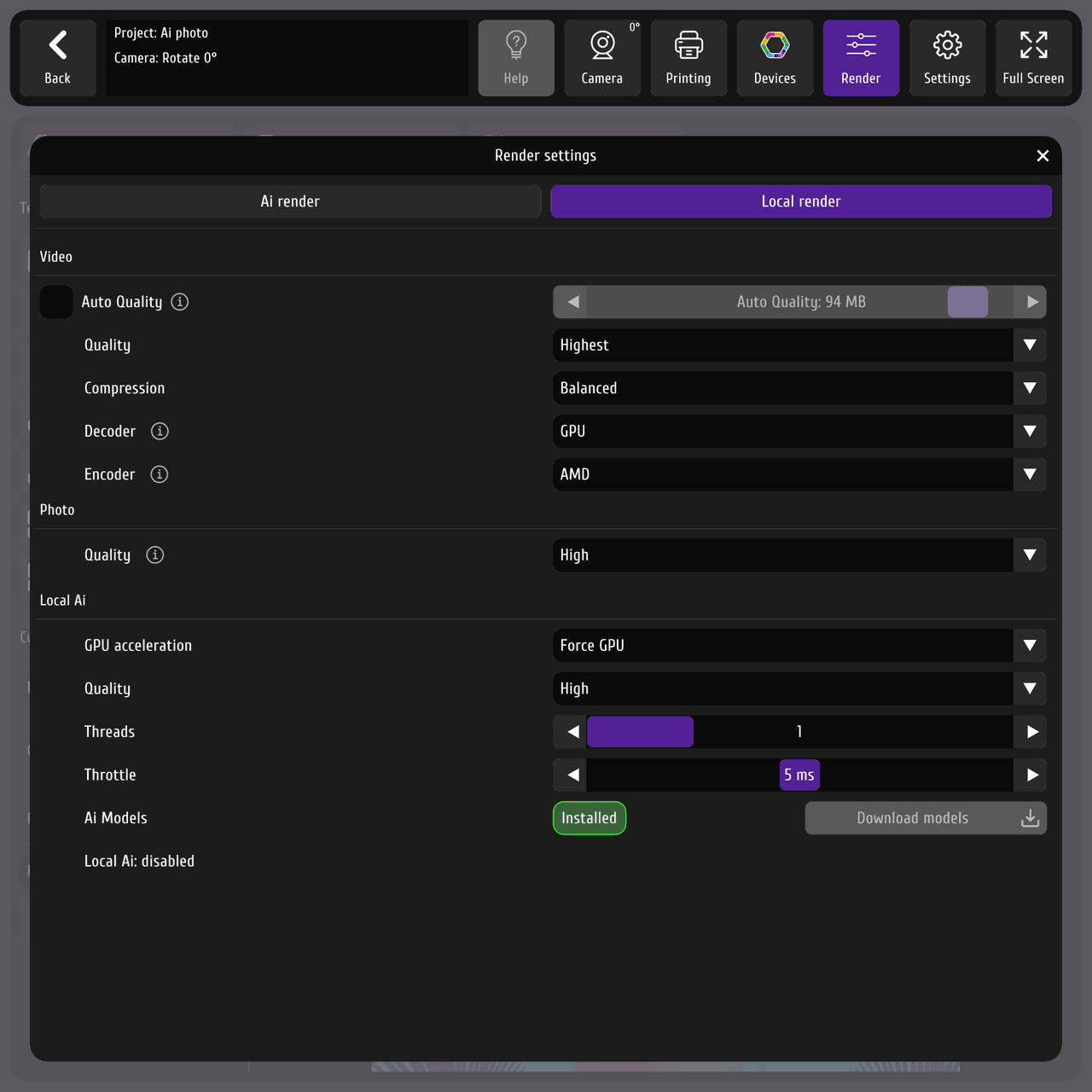
The Local Render tab holds the settings for the on-device processor — the one that handles video, photo, and local AI rendering on the booth PC.
 12
12- Local render
- Local AI options
Set auto quality, or open the advanced settings:
- Final video quality and compression.
- Encoder / decoder — hardware encoders and decoders speed up processing if your PC supports them; select them when available. If they’re not available, you’ll likely see CPU-CPU, meaning processing runs on the central processor rather than a hardware accelerator.
Set the photo quality. For the vast majority of results, High is enough — it’s a compressed file, but very good quality. Uncompressed produces a much larger file with little visible difference, so it’s usually not worth it.
Local AI
Section titled “Local AI”Local AI (on-device Deep Fake — see Local AI) can run on different hardware, because MixUp’s module supports both CPU and GPU:
- Device — choose CPU or GPU. The default is Auto, which lets the app pick the best option.
- Quality — affects processing time and load.
- Threads and delay — we recommend a delay of about 4–5 ms so heavy AI processing doesn’t fully load the system. Processing takes a little longer, but the app stays responsive and you can keep working while AI runs in the background.
AI models
Section titled “AI models”Only the Deep Fake model is not installed by default (at the moment) — the Chromakey model already ships with the installer. So if you want local Deep Fake, download its model:
- The screen shows that the model is not installed and offers a Download models button.
- Press it and choose the source to download from.
- The model downloads in the background, and afterward the app prompts you to restart.
See Local AI for when to use local Deep Fake and its trade-offs.