Processing
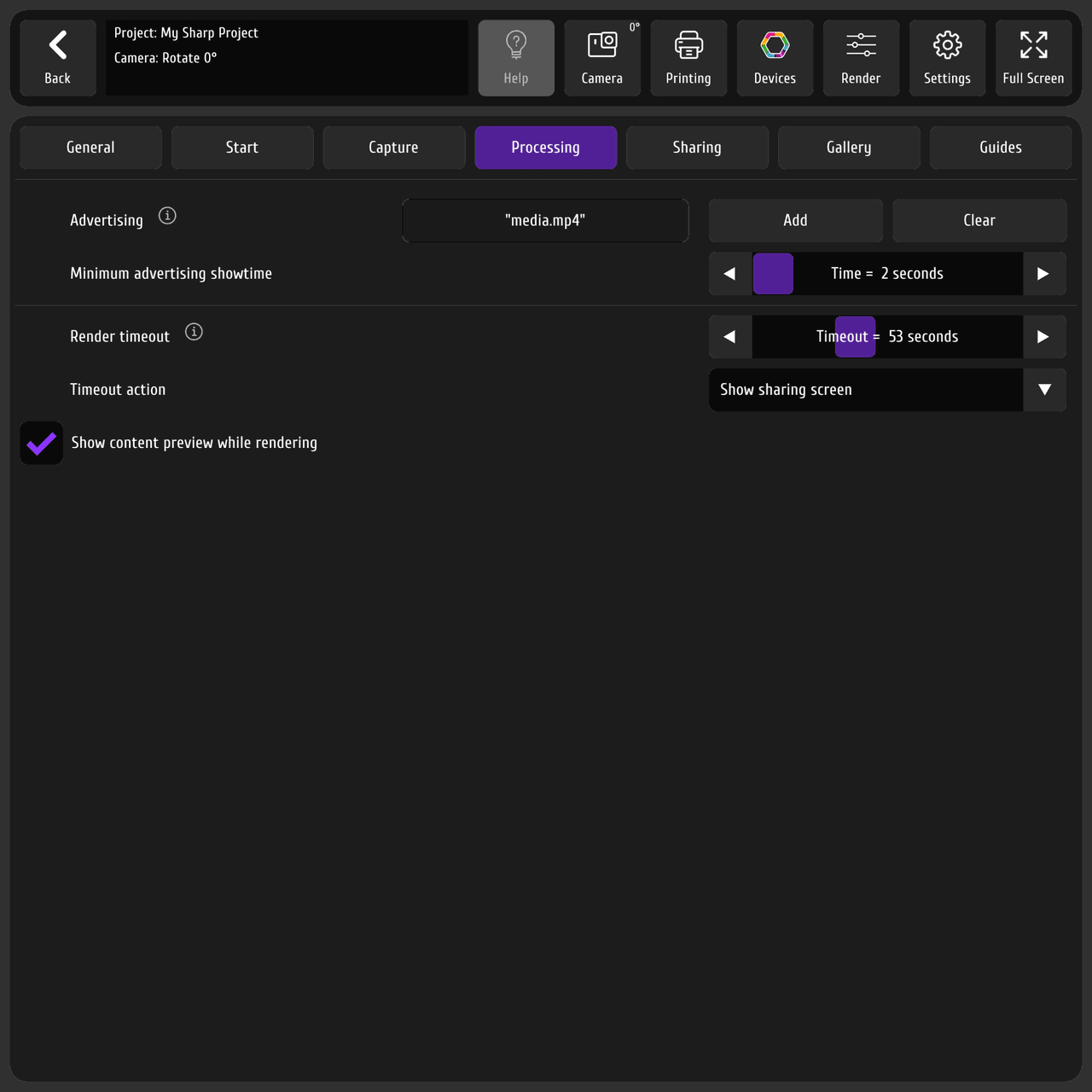
The Processing tab controls the render-wait screen (while the template composites and any AI render runs).
 123456
- Processing tab
- Advertisement (photo or video)
- Minimum display time
- Processing timeout
- Timeout action
- Show content preview while rendering
Advertisement
Section titled “Advertisement”The processing screen uses the Capture background, but while processing you can show extra content — an advertisement (a photo or video).
- Minimum display time — if the content must play for, say, 7 seconds (important info for you or your client), set 7 seconds. Even if processing finishes sooner, the ad plays for that time. After the time: if processing is done, the booth goes to the Sharing screen; if not, the ad keeps showing until processing finishes.
Processing timeout
Section titled “Processing timeout”So you don’t wait forever for AI (for example the internet dropped and the AI result can’t be fetched), set a timeout. When it elapses, choose an action:
- Open the sharing screen and show only the content that’s available, or
- return to the main session / Start screen.
Show content preview during processing
Section titled “Show content preview during processing”This draws the finished content on top of everything. If you use an advertisement, turn this off — otherwise the preview overlaps the ad.